
How to add Sky Sports to Google's Preferred Sources to see more of our content in your search results
Google now allows you to pick your trusted sources - here's how to get more Sky Sports news stories at the top of your search results in just two clicks
Thursday 8 October 2026 09:21, UK

Google has made a change to how news appears in its search results, giving people more control over what they see.
You can now select Sky Sports and any other publications you'd like to see more stories from when you visit Google.
When you add an organisation as a 'preferred source', Google is more likely to show you articles, videos and other updates from them from regularly.
With more information now being shown in AI answers, it's a way to tailor your results without having to just rely on the algorithm.
How to add Sky Sports on Google
You can simply click this Google link and select the box featuring skysports.com.
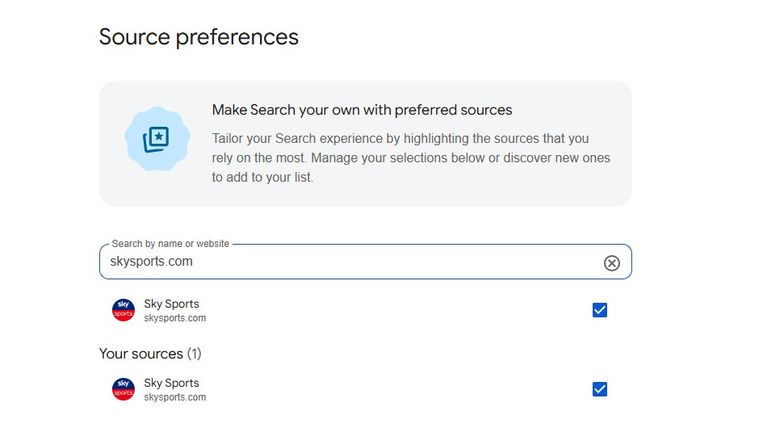
Or, If you're searching on Google for a topic, you can also click the 'Customise' button shown in the search results.
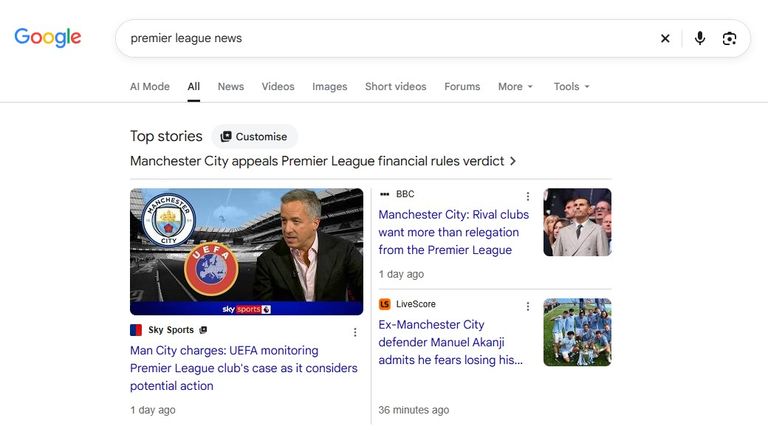
You can select as many preferred sources as you like and change your picks at any time. No matter what you choose, you'll still see content from other sites and get a mix of stories and opinions.
Got the free Sky Sports app yet?
The Sky Sports app is free and the place for all sports fans - even if you're not a Sky Sports customer - to watch Premier League and F1 highlights, see live scores and scroll the best video moments from the teams and sports that matter to you.
The app is easy to download and costs nothing - get it here for iPhone or Android.